Updating Firmware
dingoPDM and dingoPDM-Max firmware is updated using the onboard USB-C connection and the STM32 USB bootloader.
CANBoard does not have USB, see CANBoard.
Latest Firmware
The latest built firmware can be found on the release page.
Download the .hex file for your board:
| Device | File |
|---|---|
| dingoPDM | dingopdm_v7_FW_vX-X-X.hex |
| dingoPDM-Max | dingopdmmax_v1_FW_vX-X-X.hex |
| CANBoard | canboard_v2_FW_vX-X-X.hex |
Warning
Some firmware updates change the configuration format. The device will start with the default configuration after one of these updates.
Save your configuration to a file in dingoConfig before updating. After updating, open the file, Write All and Burn. See Configuration Storage.
STM32CubeProgrammer
To update the firmware, the STMicroelectronics STM32CubeProgrammer is used.
This software can be downloaded here: STM32CubeProgrammer
Entering Bootloader
To update the firmware, the device must be put into the bootloader.
This can be done using one of these methods:
- Use the dingoConfig Bootloader button to jump the device to the bootloader
- Remove the case and move the boot switch to the bootloader position
Bootloader Button
After connecting to the device in dingoConfig, open the device page and press Bootloader. This sends the Bootloader request and the device jumps to the STM32 bootloader.
The bootloader request works over USB or CAN, but the update itself must be done over USB.
Warning
Pressing the Bootloader button will turn off all outputs and drop communication with dingoConfig
Tip
Disconnect dingoConfig from the USB adapter (or close dingoConfig) before connecting with STM32CubeProgrammer.
Boot Switch
Another option is the boot switch on the PCB.
Note
The case must be removed to access the boot switch.
- Remove the DT connector and any wires going to the power/ground connections
- Remove the 2x Philips screws next to the DT connector
- Remove the 4x M6 screws around the perimeter of the device
- Slide/wiggle the case up and off the device
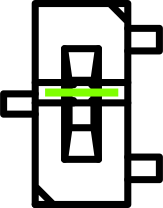
To enter the bootloader, move the slide switch to the position that aligns it with the lines on the switch body

Warning
After updating, remember to set the boot switch back to the original position
Danger
A POWER CYCLE IS REQUIRED any time the boot switch is changed
Connection
Connect a USB cable to the PC.
Note
V7.2 PCBs do not support USB-C to USB-C cables, a USB-C to USB-A cable must be used
Note
12V power is not required to perform the firmware update, the device will be powered by the USB cable
To verify that the device has entered the bootloader on Windows:
- Open the Windows
Device Manager - Expand
Universal Serial Bus devices - The
STM32 BOOTLOADERshould be listed 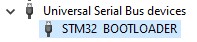
On Linux, lsusb should list STMicroelectronics STM Device in DFU Mode.
Applying Update
- Install
STM32CubeProgrammer - Open
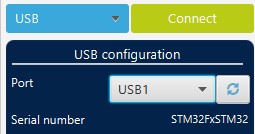
STM32CubeProgrammer - Change connection type to
USB -
Press the refresh button to update the port
-
-
Press the
Connectbutton, after successful connection theTarget Informationshould be updated 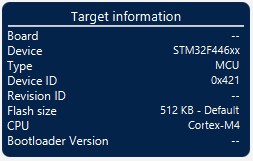
- Select the second icon on the left,
Erasing & Programming 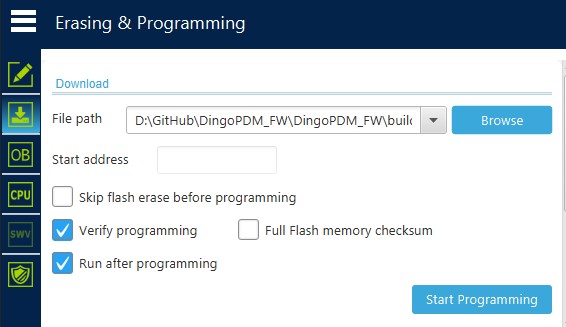
- Press
Browseand select the new firmware.hexfile - Verify
Skip flash erase before programmingis unchecked - Verify
Verify programmingandRun after programmingare checked - Press
Start Programming - After successful programming, the device will disconnect
- You should also receive pop-ups verifying successful programming
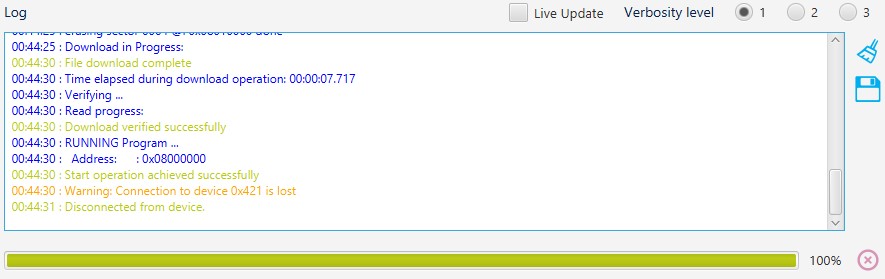
Success
Congrats! You successfully updated the firmware.
The firmware version is shown in dingoConfig on the device page.
Warning
If you used the boot switch, don't forget to set it back to the original position and cycle power!
CANBoard
CANBoard has no USB connection. It is programmed through the SWD pads with an ST-Link and a Tag-Connect TC2030 cable.
- Connect the ST-Link and Tag-Connect cable
- Open
STM32CubeProgrammerand change the connection type toST-LINK - Press
Connect - Program the
canboard_v2_FW_vX-X-X.hexfile the same way as above